

Appearance
Using FluentCart Blocks & Templates
FluentCart provides a powerful set of dedicated blocks for the WordPress block editor (Gutenberg), allowing you to build and customize your e-commerce pages with ease. Instead of being limited to predefined layouts, you can use these blocks to create a fully custom shop page, display specific products, and add e-commerce functionalities anywhere on your site.
This guide will walk you through the different methods you can use to design your shop, product, and checkout pages.
Building with FluentCart Blocks
The easiest and most flexible way to build your store is with FluentCart's dedicated blocks. These act like building bricks, allowing you to add e-commerce features to any page or post in the WordPress editor.
Accessing FluentCart Blocks
- From your WordPress dashboard, open any page or post.
- Click the plus icon (+) to open the block inserter.
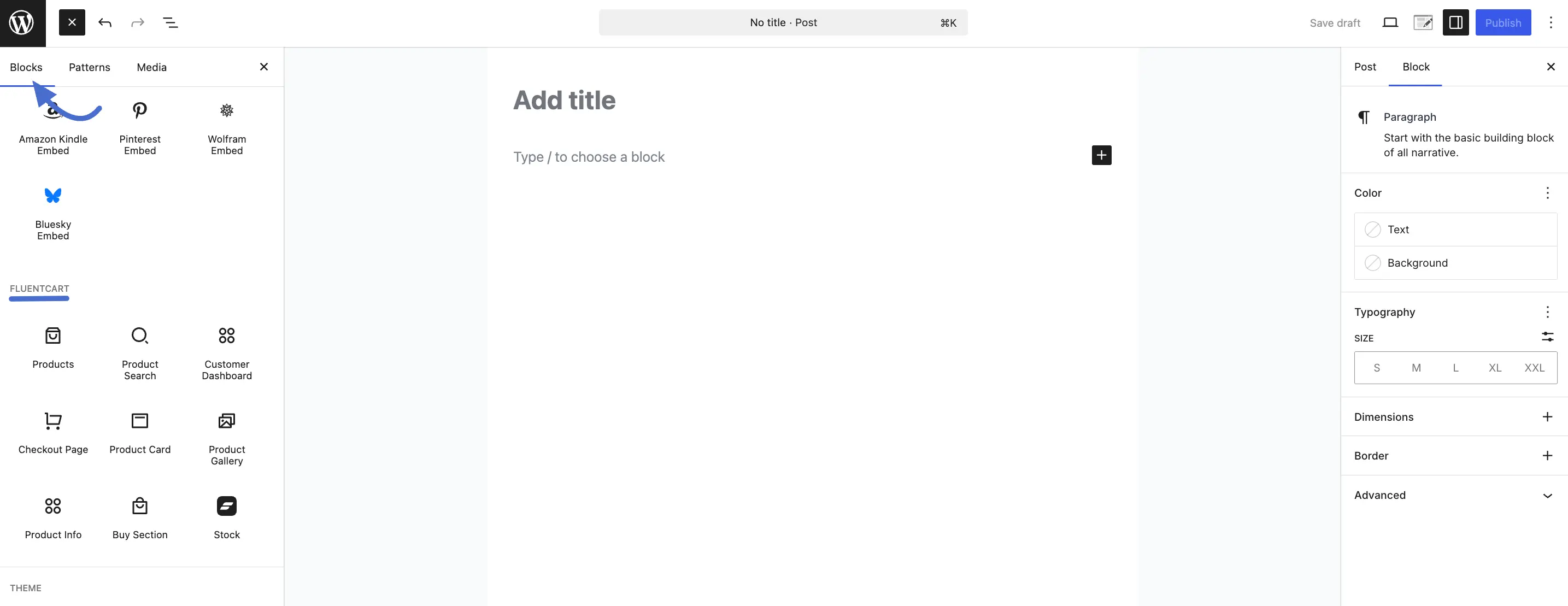
- Scroll down to find the FluentCart and FluentCart Buttons categories, or simply search for the block you need.
Understanding the Core Blocks
FluentCart offers a set of powerful Gutenberg blocks that help you design everything—from a full shop page to a custom product layout. Each block serves a specific purpose, giving you full flexibility when building your store.
- Products: This block shows a dynamic and customizable grid of all your products. Use it to build your main Shop page or display featured items anywhere on your site. You can filter products by categories, tags, and more.
- Product Search: Adds a clean search bar that looks through your FluentCart products only. Helpful for giving customers a quick way to find what they need.
- Customer Dashboard: Place this block on a dedicated page to create a "My Account" area. Logged-in customers can view their orders, manage subscriptions, download files, and update personal details.
- Checkout Page: Add this block to a blank page to create your official checkout. It automatically loads the complete secure checkout form.
- Product Card: Displays a single product in a beautifully styled card layout. Great for highlighting featured products or embedding items inside blog posts.
- Product Gallery: Shows the image gallery of a specific product. Perfect when designing a custom product page layout and placing the gallery exactly where you want it.
- Product Info: Displays the main details of a product: title, description, price, and more. A core piece of modular product page building.
- Buy Section: Shows the full purchasing area for a product—including variations, quantity selector, and the Add to Cart button. Essential for custom product templates.
- Price Range: Displays the product’s price or price range (for variable products). Useful when building modular product layouts.
- Excerpt: Shows the short product description. Ideal for custom-designed product pages where you want more control over text placement.
- Product Button: Adds a dedicated product action button—for example, “View Product.” Helpful when customizing lists, product highlights, or promo sections.
- Add to Cart Button: Displays a standalone Add to Cart button for a specific product. Useful when you want to place the button separately from other product details.
- Stock: Displays whether a product is currently In Stock, Low Stock, or Out of Stock. Great for creating urgency and increasing conversions.
Note: Each FluentCart block comes with its own customization settings. After adding a block, check the settings panel on the right to adjust design, alignment, behavior, and visibility.
Advanced Layout Control: A Practical Example
The Products block is not just a static grid—it's a flexible container with smaller, nested blocks inside it. This allows you to completely change the layout of your product listings without any code.
Example: Moving the Price Above the Image
Let's say you want to create a unique look for your shop by displaying the price before the product image.
- Add the Products block to your page.
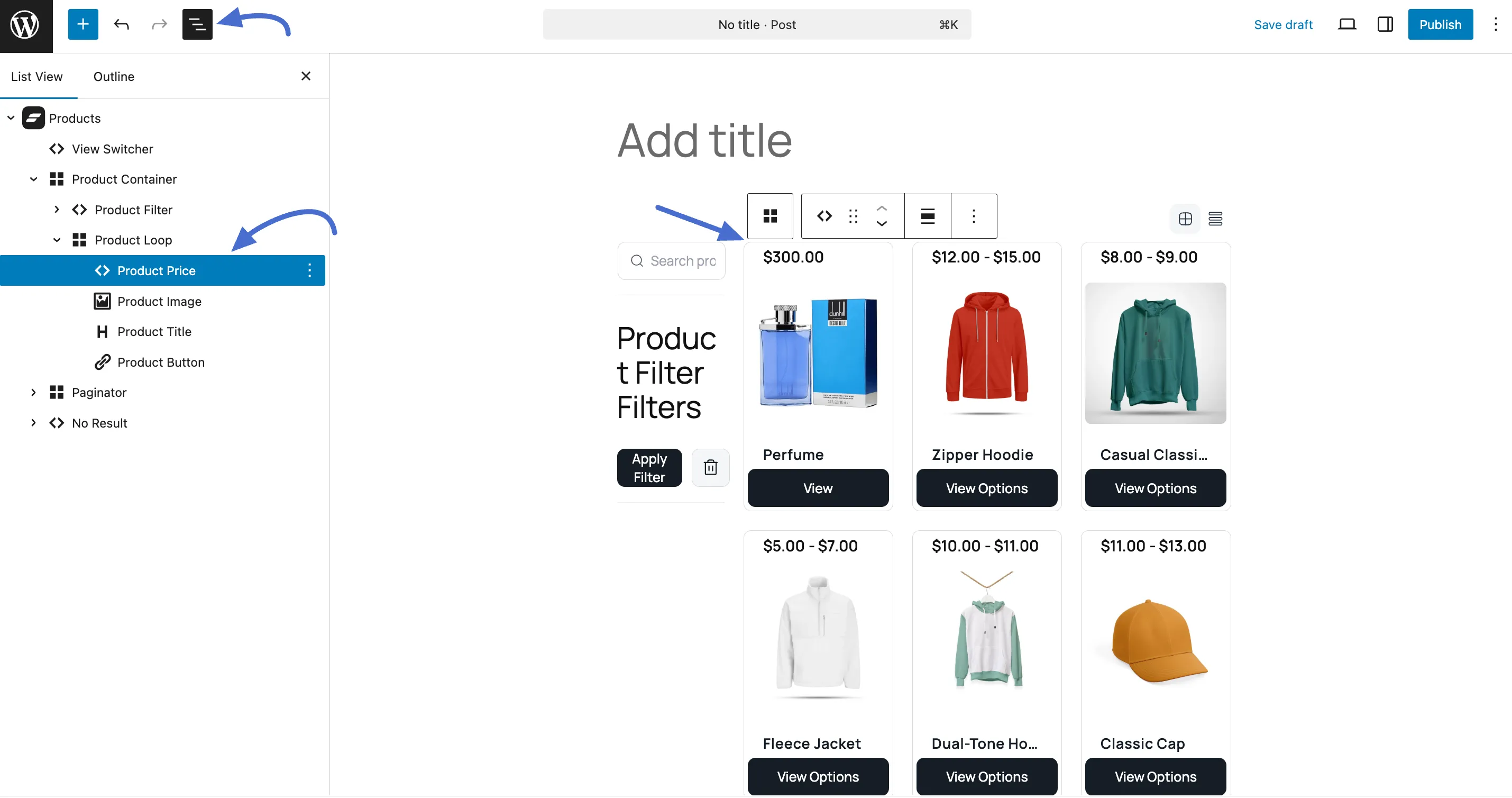
- Select the block, and in the toolbar at the top of the editor, click the List View icon.
- In the List View panel, expand the Products block to see its nested structure. You will find blocks like Product Image, Product Title, and Product Price.
- Simply click and drag the Product Price block and move it above the Product Image block.
Just like that, you have changed the layout for every product in the grid. You can reorder, remove, or customize any of the inner blocks to create the perfect design for your store.
Customizing Core Layouts with Templates (for Block Themes)
If you are using a modern, block-based WordPress theme, you can edit FluentCart's core templates directly. This gives you control over the fundamental design of your product and archive pages.
Accessing FluentCart Templates
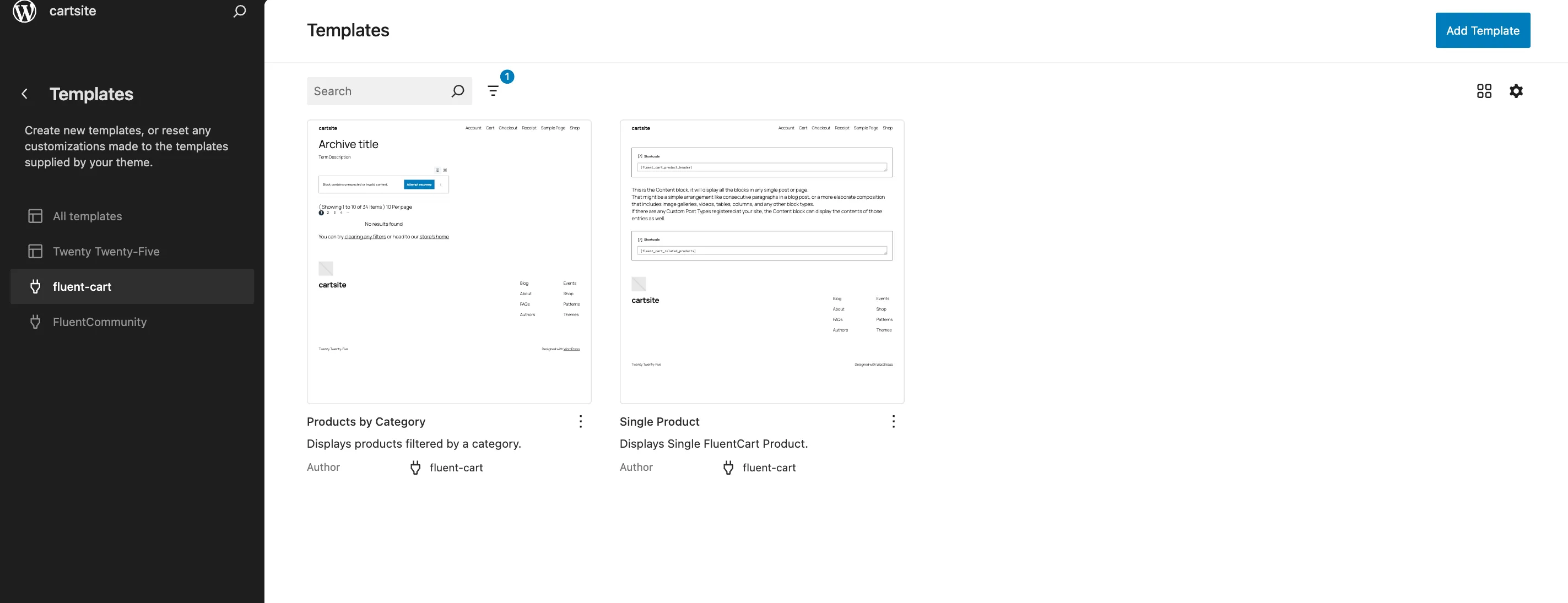
- From your WordPress dashboard, go to Appearance > Editor.
- In the Site Editor, select Templates.
- Look for the FluentCart templates.
- Single Product: This template controls the design of your individual product pages. Edit this to change the layout of the product title, image, description, and price for all products at once.
- Products by Category: This template controls the design of your category pages (the pages that list all products in a category).
Integrating with Page Builders Bricks
FluentCart's blocks are also fully compatible with popular page builder Bricks. This allows you to seamlessly integrate FluentCart's e-commerce power with the advanced design capabilities of Bricks. You can use the FluentCart templates directly within the Bricks editor just as you would in the standard WordPress editor, giving you the best of both worlds.
For other builders that may not have direct block support, FluentCart also provides shortcodes as a flexible way to add product grids and buttons to any design.
TIP
You can always return later to make changes. The Block Editor is flexible, so feel free to experiment without worrying about messing up your layout.
Save Your Changes
When you’re done making changes, click the Save button at the top right. Your customized template will now be live on your site.